



Infobase Learning Cloud is an online resource that has how-to training on common software and devices. It also training specifically for software used here at Meredith College.
Updated 4/12/23
Each online training course is made up of short video segments and documents.
This learn-at-your-own-pace solution offers the flexibility to skip lessons you’re already familiar with and review lessons that prove more difficult. All training is online and on-demand.
You can even add trainings right into Brightspace for your students to complete as part of your course.
Access Infobase Learning Cloud here. When prompted to log in, enter your NetID and password.
Meredith specific training
list updated 4/12/23. new trainings updated regularly
- Accessibility in Google Workspace
- ALLY Accessibility for Brightspace
- Brightspace
- Creating Accessible Content In Microsoft
- Flip (formerly Flipgrid)
- Foxit PDF Editor & Reader
- Google Workspace
- Kaltura for Brightspace
- Kaltura Video Platform
- Lockdown Browser
- Meredith College Plagiarism Tutorial
- New Faculty Technology
- New Staff Technology
- Readspeaker Speech-to-Text
- Turnitin
- WeVideo
- Zoom
Other Training
You will find other quick video tutorials and/or mini-training courses on
- Adobe 2021 (After Effects, Illustrator, Premiere, Photoshop)
- Google for Educators (Forms, Sheets, etc)
- Google Docs- Sharing & Collaborating
- Google Hangouts
- Word 2021
- Excel Basics & Advanced 2021
- Google Meet 2021
- Searching the Web
- Zoom 2021
- Effective Presentation Design
- Research essentials
- Leadership Styles
- Academic Integrity
- Read Write Gold 11 Training
- MPA
- APA
- many others.
Add Infobase Learning Cloud training to Brightspace
Instructors can assign modules and lessons to their students right from their Brightspace course.
To add Infobase content,
- click the Existing Activities button
- choose Infobase Assign (Deep Link) from the menu.


3. Use the search bar to search for content
4. Click on the module title

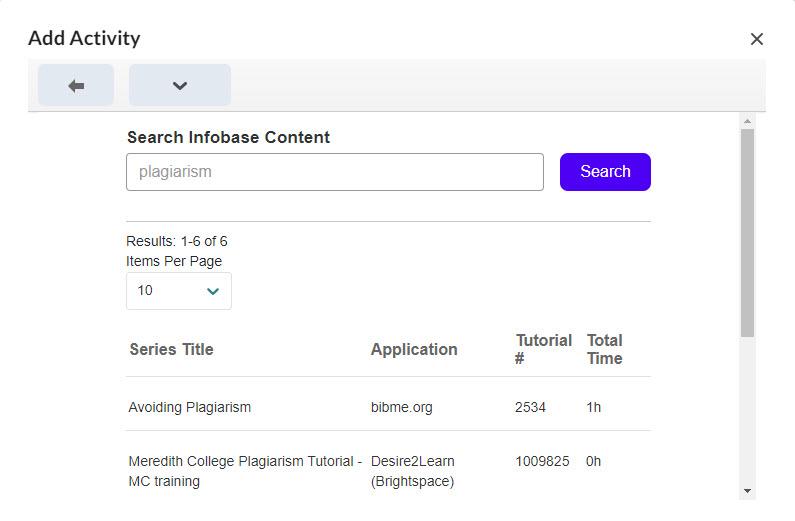
5. Expand the resource list
6. Select All or choose specific pieces of the module
7. Click Preview Selections


8. Double check that you have the right selection
9. Click Add Resources


The Infobase content has now been added to the Content area. Check to make sure it is displaying correctly.
Copying Infobase Learning Cloud in Brightspace
For a partial course copy, there is an extra box to check or the tutorial link will break. This section details the extra steps during course copy. For full instruction on course copy, please see our course copy post..
For a full course copy, the plagiarism should copy over without any extra steps.
When selecting course components to copy,
- Select Content with the option of Select individual items to copy
- Select External Learning Tool Links with the option of Select individual items to copy
- Click Continue


- Select the Content module topics that are from Infobase Learning Cloud
- Click Continue
- Scroll down through the External Learning Tool Links and select any that are from Infobase Learning Cloud
- Click Continue


- Finish the partial course copy as usual
The Infobase content should now be successfully copied to a new course. If you have any questions about this process, please contact the IDAT team.